Introduction
Imagine you're preparing an ad campaign and aren't sure which landing page will perform better: one headline or another, a signup form at the top or at the bottom. Normally, comparing options like this means creating several different short links, manually splitting traffic between them, and pulling the statistics together into a separate spreadsheet. Now Lix.li makes this much simpler: with built-in A/B testing, a single short link can automatically split traffic between several landing page variants, and all the statistics for each variant are collected in one place. In this article, we'll cover why A/B testing matters, what advantages it offers, and how to run it through the Lix.li dashboard — without writing a single line of code.
What Is Link A/B Testing
A/B testing (sometimes called split testing) is a method for comparing several versions of a page or offer by randomly splitting an audience between them. Some visitors see variant A, others see variant B (or C, D), and you then compare which variant performs better — more clicks, sign-ups, or purchases.
In Lix.li, this is built directly into the short link. You can attach up to three alternative destination URLs — "variants" — to a single link, and set what percentage of traffic each should receive. The link's original destination becomes the "control" — the baseline the other variants are compared against.
For example, the link lix.li/summer-sale could send:
- 70% of visitors — to the current landing page (control);
- 20% of visitors — to a page with a new design (variant B);
- 10% of visitors — to a page with a different headline (variant C). All of this happens automatically, without changing the short link itself — it stays exactly the same everywhere it's already published: on social media, in newsletters, or on printed materials.
Why You Need A/B Testing
Validating hypotheses before scaling up
Before committing budget to a large campaign, it's useful to test which version of a page converts better on a small slice of traffic first. This reduces the risk of spending your ad budget on a less effective option.
Objective comparison instead of guesswork
Instead of relying on intuition ("I think this version looks better"), an A/B test gives you concrete numbers: how many clicks each variant received and its actual share of total traffic.
One tool instead of manual tracking
Without A/B testing, comparing two pages would mean creating two separate short links, publishing both, and then manually matching up the statistics for each. In Lix.li, one link handles it all: traffic splits automatically according to the percentages you set, and the statistics for every variant live in a single table.
A consistent experience for every visitor
The traffic split is "sticky": if a visitor has already clicked through and landed on variant B, they'll land on variant B again on any repeat visit. This matters for the integrity of the experiment — a person shouldn't see one version of the page one time and a different version the next.
Applying the result quickly
Once it's clear which variant performs better, you can make it the link's main destination with a single click — no need to recreate the link or update any materials with a QR code or the link itself that have already been published.
Feature Availability
A/B testing is available on the Premium plan. The testing settings section is visible on every plan, but on lower tiers it's locked — you'll see a lock icon next to the fields, and hovering over it shows a prompt to upgrade to a suitable plan.
How to Set Up an A/B Test: Step-by-Step Guide
Where to find the A/B testing section
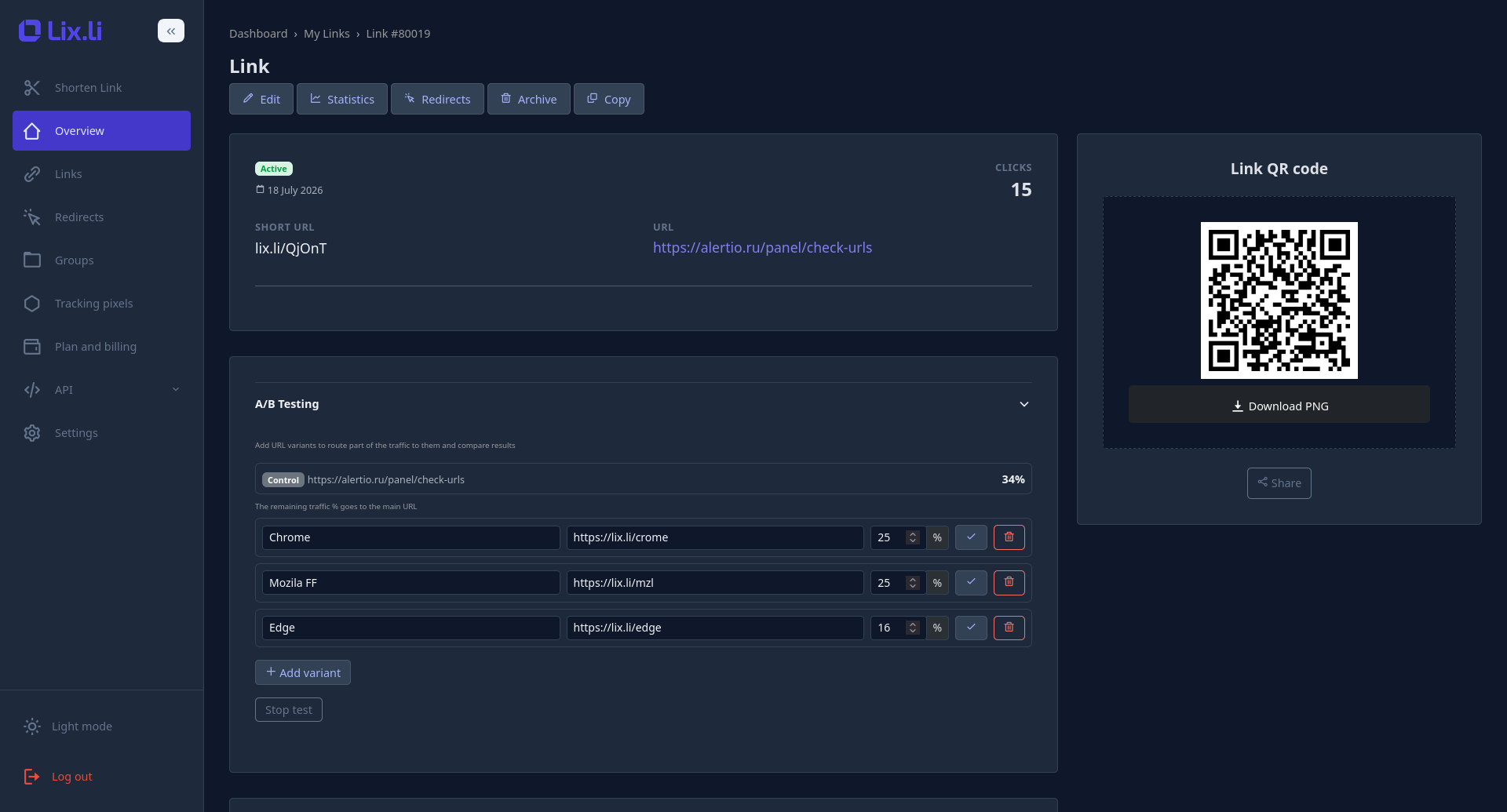
A/B test settings live in two places in the dashboard, and both show the same controls:
- On the link page. Open My Links, select the link you need — the A/B testing panel sits below the main link information, above the statistics block.
- In the link edit form. On the link page, click Edit — here, A/B testing appears as a collapsible section, styled the same way as the UTM and meta tag sections. If a test is already running, the section expands automatically.
Two things to keep in mind:
- The link must already exist. On the link creation form, the A/B testing section isn't available yet — you'll only see a hint that setup becomes available once the link is created.
- Premium plan required. On other plans, the section is visible but locked.
Step 1 — Add variants
- Click the "Add variant" button — a new empty row appears with a default weight of 10%.
- Enter the destination URL for this variant. It's validated using the same rules as the link's main URL (allowed schemes, a real hostname, no local addresses).
- Set the weight — the percentage share of visitors this variant should receive.
- Optionally, give the variant a name — it will appear in statistics instead of the raw URL, which makes it easier to identify at a glance.
- Click the ✓ ("save") icon on the row. You can add up to three variants this way. The combined weight of all variants can't exceed 99% — at least 1% of traffic always stays with the main link (the control). The control's share is calculated automatically as 100% minus the sum of the variant weights and can't be edited directly. If something is entered incorrectly when saving — say, an invalid URL or a weight outside the 1–99 range — an error appears right under the relevant field in that row. A row you haven't saved yet can be removed with the trash icon without any confirmation.
Step 2 — Start the test
Click the "Start test" button. From this moment on, incoming traffic starts splitting between the control and the variants according to the weights you set. The button appears once the link has at least one saved variant; while a test is running, it's replaced by a "Stop test" button. Nothing changes visibly for your visitors — the short link stays exactly the same, and any changes to variant weights or URLs take effect immediately, with no delay.
Step 3 — Monitor the results
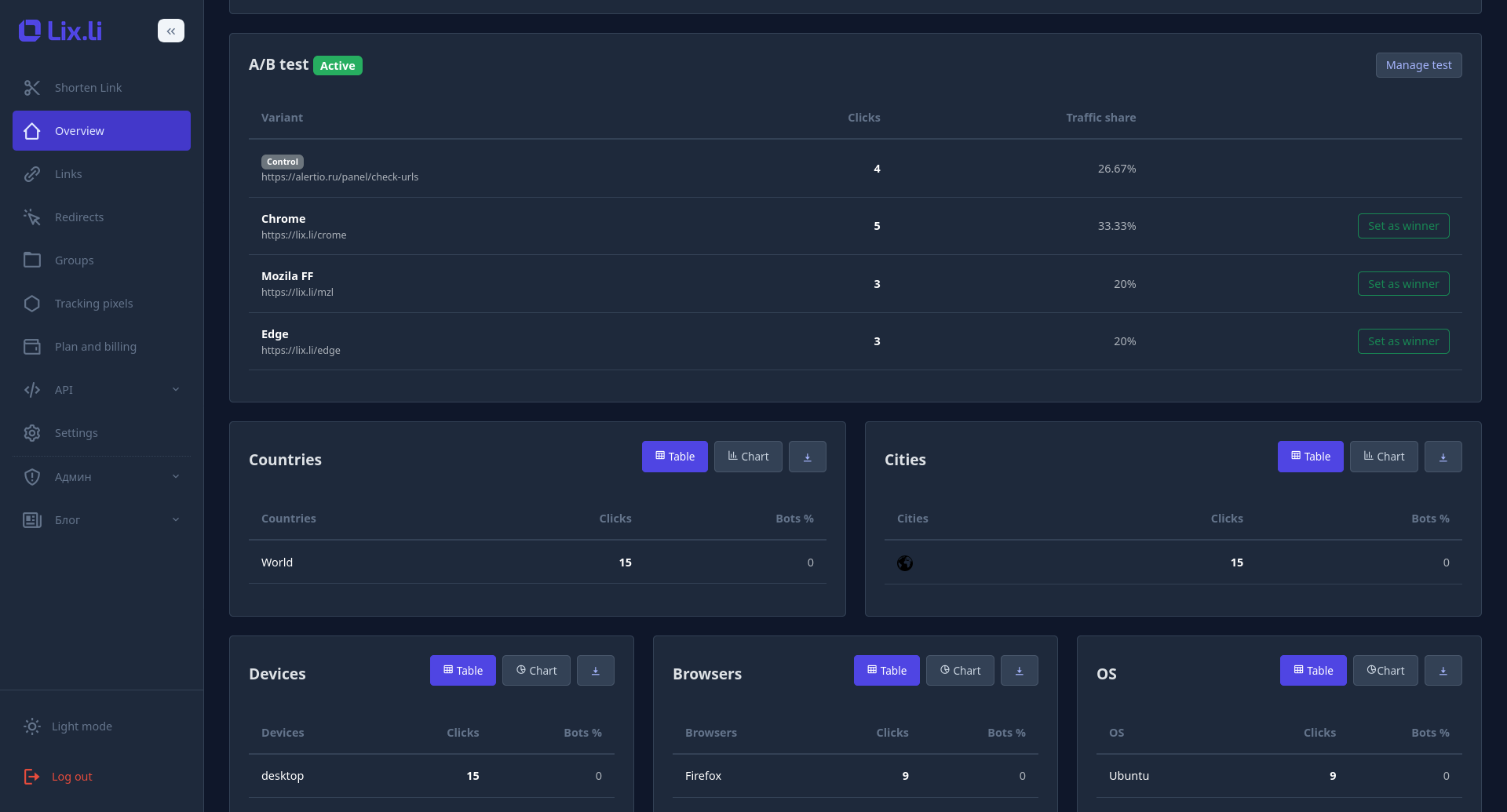
Open the link's statistics page — the "Stats" button on the link page. If the link has variants, an "A/B test" card appears above the regular statistics blocks. While the test is active, the card header shows a green "Active" badge, and the "Manage test" button takes you back to the link page with the test settings. The table lists the control and every variant (by name, or by URL if no name was given), with three columns:
- Clicks — the number of redirects to this destination during the selected period;
- Traffic share — the actual observed share of clicks, as a percentage;
- a "Set as winner" button — available only on variant rows, and only while the test is active. The period selector at the top of the statistics page applies to this table too — for a fair comparison, it's best to choose a period starting from when the test began, since clicks recorded before the test started are counted toward the control. Keep in mind: on a small number of clicks, the actual traffic share may differ from the configured weight by a few percentage points — this is expected and evens out as unique visitor numbers grow.
Step 4 — Finish the test
There are two ways to finish a test:
- Promote a winner. On the statistics page, click "Set as winner" next to the best-performing variant and confirm the dialog. That variant's URL becomes the link's new main destination, all variants are archived, and the test ends. From that point on, 100% of the link's traffic goes to the chosen destination. This action can't be undone — archived variants can't be restored, though you're always free to create new ones.
- Stop without picking a winner. On the link page, click "Stop test". All traffic reverts to the control, but the configured variants and their weights are kept — you can adjust them and start the test again later.
Editing and deleting variants
- To change a variant's URL, name, or weight, edit the values in its row and click ✓. The control's share recalculates automatically.
- To delete a saved variant, click the trash icon and confirm the deletion. Its share of traffic returns to the control. If you delete the last variant of a running test, the test stops automatically.
- You can only increase a variant's weight within the control's remaining free share — the combined weight of all variants can never exceed 99%.
How Traffic Splitting Works
It's useful to understand the logic behind the split, even if you don't plan to interact with it directly:
- The first time a visitor reaches any Lix.li page, they're assigned an anonymous identifier that's stored for a long period.
- When someone clicks a short link, the system deterministically decides which variant to show that visitor, based on their identifier and the link's identifier.
- Because of this, the split is "sticky": the same visitor always lands on the same destination — on repeat visits, and even if the link is password-protected or uses an interstitial page.
- Variant selection is independent per link: the same visitor might see the control for one link and a variant for another.
- Every click is logged with the specific variant it was routed to, so per-variant reports are exact rather than approximate. A/B testing works alongside all of the link's other features — including a custom domain, a password, and an expiration date.
Limitations
- The feature is available on the Premium plan.
- Up to three variants can be attached to a single link — combined with the control, that's up to four possible destinations.
- Each variant's weight is a whole number from 1 to 99%, and the combined weight of all variants can't exceed 99%.
- Promoting a winner is irreversible: archived variants can't be restored.
- In the current version, the service doesn't track per-variant conversions or calculate statistical significance automatically — deciding on a winner is up to you, based on click data and traffic share.
Conclusion
Built-in A/B testing in Lix.li removes the need to manually create multiple links and piece together their statistics separately. Just add alternative destinations to a link you already have, set how traffic should be split between them as percentages, and start the test — from there, the service handles routing visitors to the right variant and collecting precise statistics for each one. Once a clear winner emerges, you can apply it with a single click, without changing the short link itself or updating any materials that are already out there. We'll cover how to configure and run A/B tests via the API for automation and integrations in a separate article.